Last updated: 2026.7.14
| Contents of this page |
Creating users
 |
So that we can use them for various tests, let's create the following users and groups in Entra ID. Note that we're using the free tier of Entra ID this time. |
| Username | Password | Group membership | Two-factor authentication |
| entra_user1 | Any | entra_group1 | None |
| entra_user2 | 〃 | entra_group2 | 〃 |
| entra_user3 | 〃 | entra_group1 | 〃 |
| entra_user4 | 〃 | entra_group2 | 〃 |
 |
So, users with odd numbers in their username belong to group1, and users with even numbers belong to group2. Is it okay to leave two-factor authentication off? |
|
Since this is just for testing, I think it's fine. The free tier doesn't allow for fine-grained control anyway. So, let's start with the users. |
① Log in to the Azure portal and go to Entra ID.

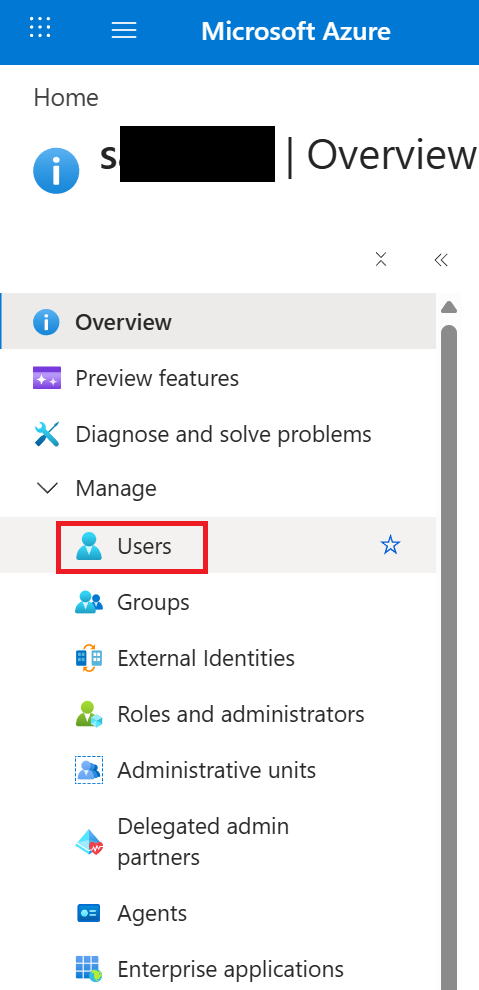
② Go to Users.
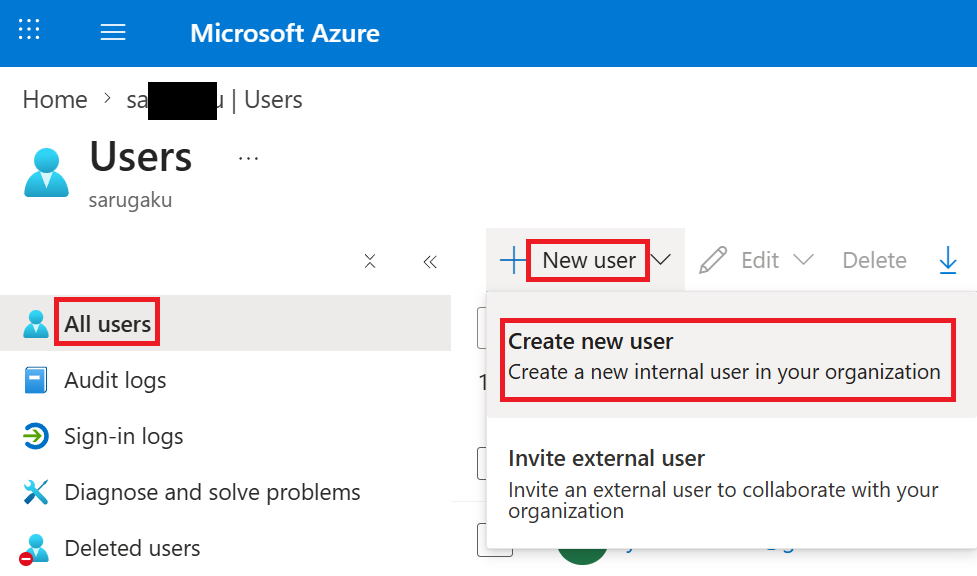
③ Go to All users → New user → Create new user.
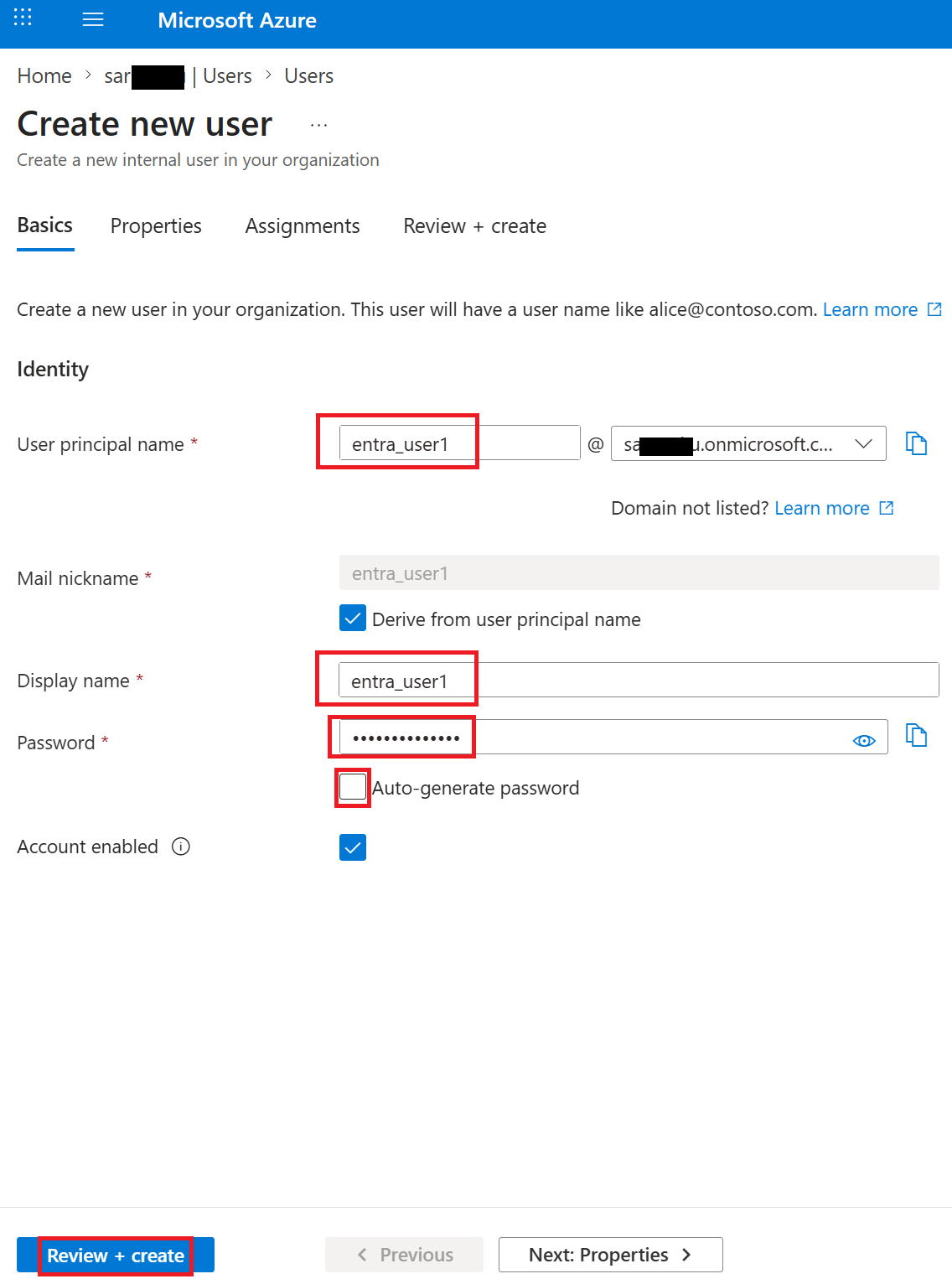
④ Enter the User principal name and Display name. We used entra_user1 this time.
Uncheck "Auto-generate password" for Password and enter it manually.
Then click Review + Create at the bottom left. Clicking Create again on the next page creates the user.
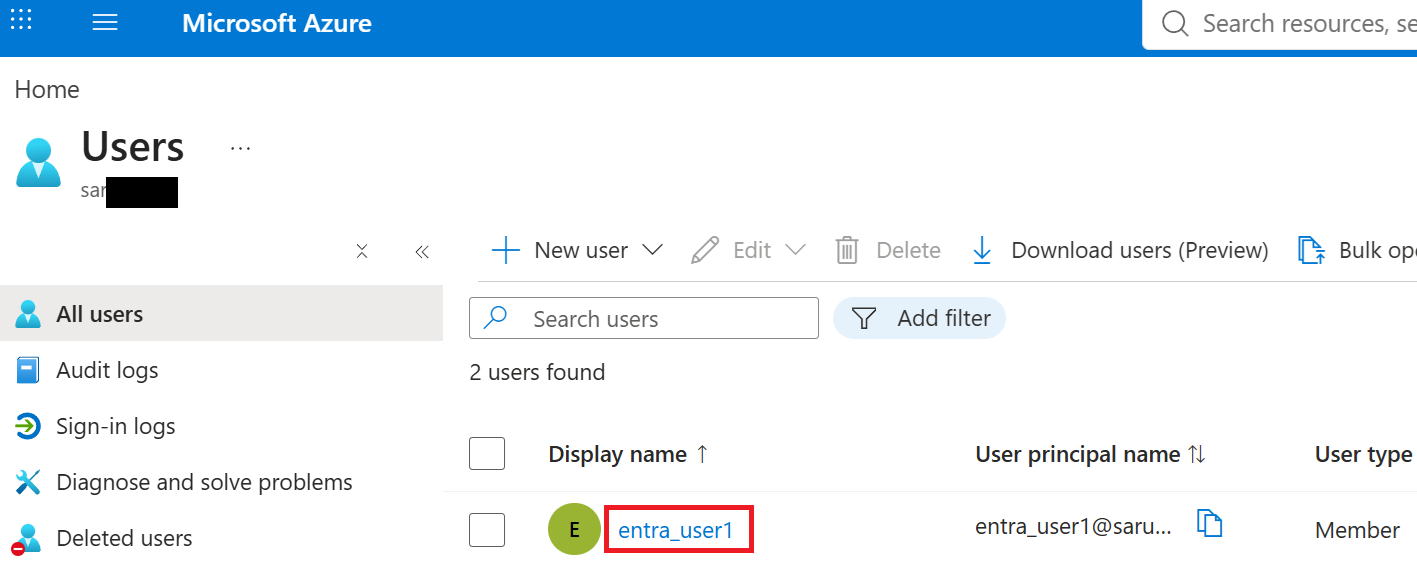
④ Back on the list screen, entra_user1 has been created. Create entra_user2 through 4 the same way.
Creating groups
|
Next, let's create the groups. |
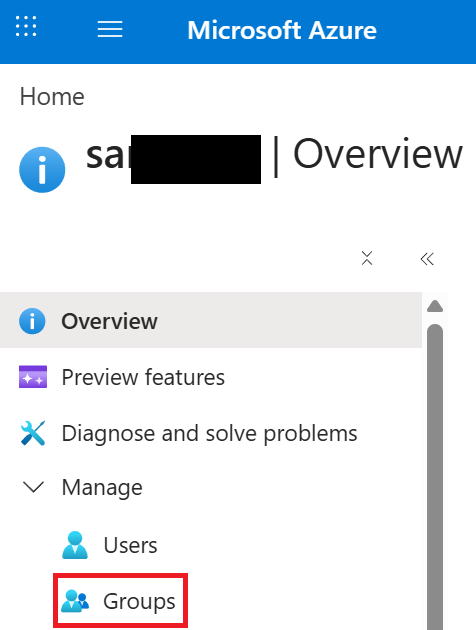
① From the Entra ID Home screen, go to Groups.
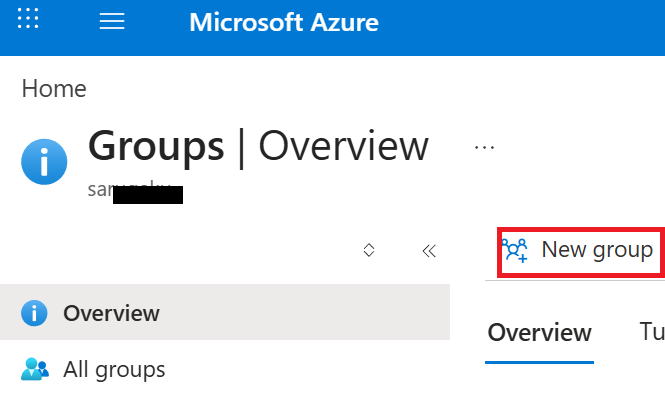
② Go to New group.
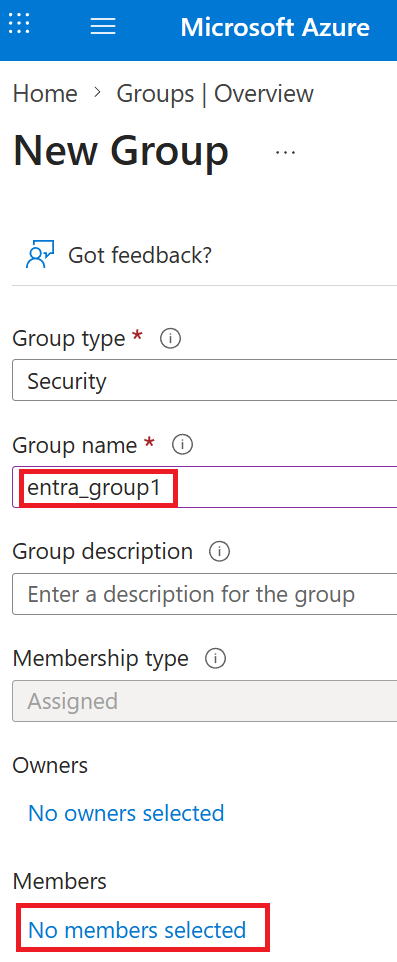
③ Enter entra_group1 for Group name. Go to No members selected.
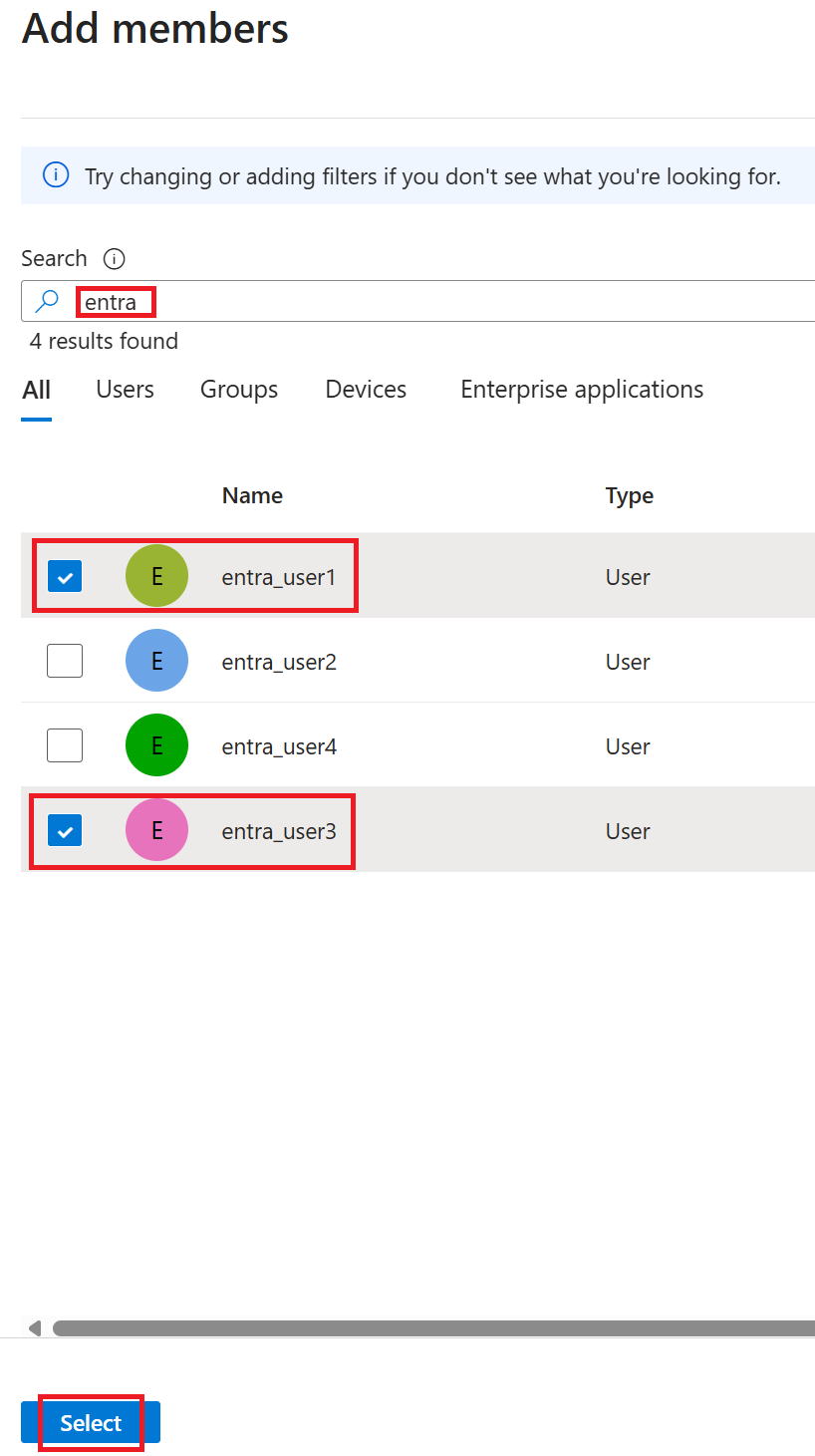
④ A new Add members screen appears on the right.
Typing entra in the search box shows the four users we created earlier.
This time, since we're making the odd-numbered users members of group1, check user1 and user3, then click Selected at the bottom left → Create.
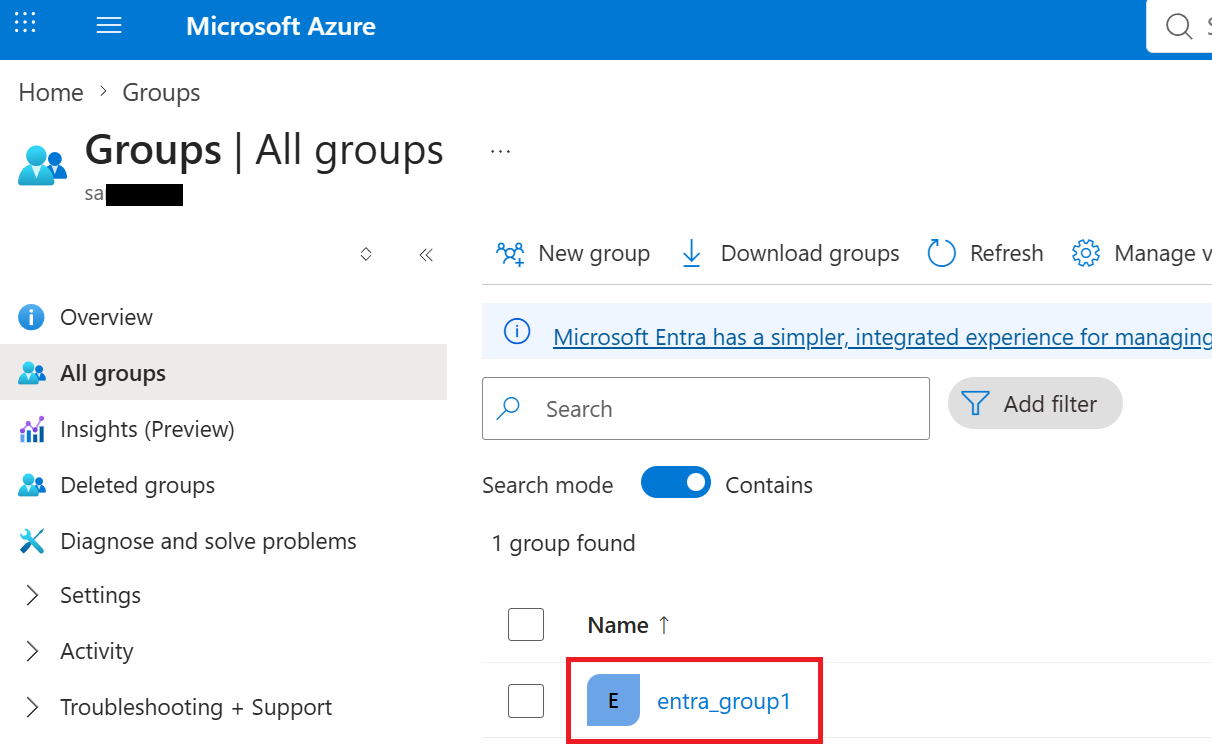
⑤ Back on the Group list screen, entra_group1 has been created. Create group2 the same way.